
If your computer has ever slowed to a crawl while you were switching between apps or opening multiple browser tabs, you’ve likely felt the limits of your system’s memory. It’s frustrating—and often avoidable. One of the most important components behind your computer’s speed and responsiveness is RAM (Random Access Memory). It’s what allows your system to juggle tasks smoothly without freezing or lagging.
Yet, when it comes time to upgrade or buy a new computer, many people feel overwhelmed. You’re faced with numbers, types, speeds, and compatibility concerns. Is more always better? Does faster RAM really matter? And how do you know what’s right for your specific needs?
The truth is, choosing the right memory isn’t about picking the biggest number on the box. It’s about understanding how you use your computer and matching that with the right balance of capacity and performance. Once you get that foundation right, everything else becomes much easier to decide.
Understanding Your Memory Needs
Before diving into technical details, it’s important to think about how you actually use your computer daily. Not everyone needs the same amount of RAM, and your ideal setup depends heavily on your workload.
For casual users who mainly browse the web, stream videos, or work with simple documents, memory demands are fairly low. A student writing papers or attending online classes may need a bit more, especially if they multitask between apps. Gamers and professionals working with large files, editing software, or design tools will require significantly more memory to keep things running smoothly.
At this stage, many people start asking themselves a very practical question. How much RAM do I need? It’s a fair concern, especially when you’re trying to balance performance with cost. Helpful online resources can guide you through typical use cases and give you a clearer idea of what works best for different types of users, making it easier to avoid buying too little or more than you’ll ever use.
As a general guideline, 8GB of RAM is enough for basic everyday tasks. If you regularly multitask or run heavier applications, 16GB is a safer and more comfortable choice. For gamers or creative professionals working with video editing, 3D rendering, or large datasets, 32GB or more may be worth considering.
Ultimately, your usage habits matter more than anything else. Buying memory based on real needs ensures your system runs efficiently without unnecessary expense.
Types of RAM Explained
Not all RAM is created equal. Over the years, different generations of memory have been developed, each offering improvements in speed and efficiency.
Today, the most common types you’ll encounter are DDR4 and DDR5. DDR4 is still widely used and offers solid performance for most users. DDR5, on the other hand, is newer and provides higher speeds and better efficiency, though it tends to be more expensive and requires compatible hardware.
If you’re working with an older system, you might still come across DDR3, but it’s largely outdated and not suitable for modern builds.
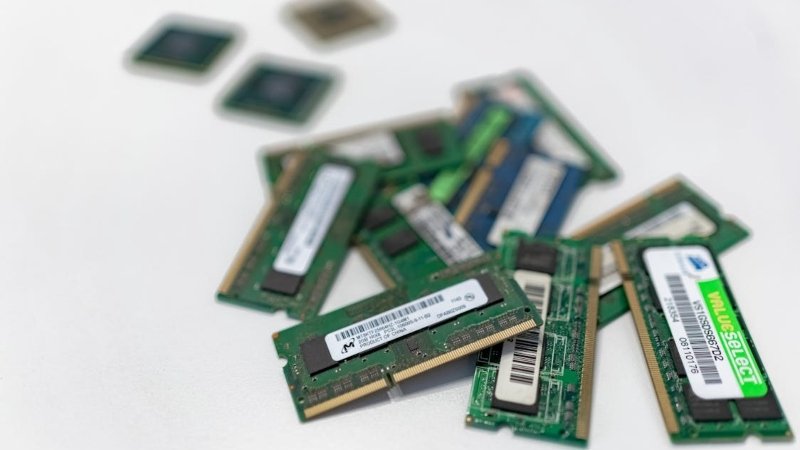
Another important distinction is the form factor. Desktop computers typically use DIMM modules, while laptops use smaller SO-DIMM modules. These are not interchangeable, so it’s important to know what your system supports before making a purchase.
Compatibility is key here. Your motherboard determines which type of RAM you can use, so always check its specifications before upgrading.
Key Specifications That Matter
When comparing memory options, you’ll notice several specifications listed. While they may seem technical at first, understanding the basics can help you make a smarter decision.
The first and most important factor is capacity, measured in gigabytes (GB). This determines how much data your system can handle at once. More capacity generally means better multitasking and smoother performance.
Next is speed, measured in megahertz (MHz). This indicates how quickly data can be transferred. Faster RAM can improve performance, but the difference is often subtle unless you’re running demanding applications.
Latency, often shown as CL (CAS latency), refers to how quickly the RAM responds to requests. Lower latency is better, but like speed, it should be considered alongside other factors rather than on its own.
Another key consideration is whether your system supports dual-channel memory. Using two matching RAM sticks instead of one can improve performance by allowing data to be processed more efficiently.
In most cases, a balanced setup—adequate capacity with reasonable speed—delivers better results than focusing too heavily on one specification.
Compatibility and System Requirements
Even the best RAM won’t perform well if it isn’t compatible with your system. Before making a purchase, it’s essential to check your motherboard and processor specifications.
Each motherboard supports specific types and maximum amounts of RAM. Installing memory that exceeds these limits simply won’t work. Similarly, some CPUs are optimized for certain memory speeds, so going beyond that may not provide additional benefits.
Mixing different RAM modules can also cause issues. While it’s sometimes possible to combine sticks with different speeds or brands, it can lead to instability or reduced performance. For the best results, use matching modules whenever possible.
Many manufacturers offer online tools that help you find compatible memory for your system. Taking a few minutes to verify compatibility can save you time and frustration later.
Budget vs Performance: Finding the Sweet Spot
It’s easy to assume that spending more on RAM will automatically give you better performance, but that’s not always the case. There’s a point where adding more memory provides little to no noticeable improvement.
For budget-conscious users, 8GB to 16GB is often enough to handle everyday tasks comfortably. Mid-range systems benefit from 16GB, offering a smooth experience for multitasking and moderate workloads. High-performance setups, such as gaming rigs or workstations, may justify 32GB or more.
Instead of chasing the highest numbers, focus on what you actually need. Prioritize capacity first, then consider speed and other features. This approach ensures you get the best value without overspending.
When and Why to Upgrade Your RAM
Over time, your computing needs may change. Software becomes more demanding, and what once felt fast may start to feel sluggish.
Common signs that you need more RAM include frequent slowdowns, lag when switching between applications, and high memory usage in your system monitor. If your computer struggles during basic multitasking, an upgrade could make a noticeable difference.
Adding more RAM can improve responsiveness, reduce loading times, and make your overall experience smoother. For desktop users, upgrading is usually simple and cost-effective. Laptop upgrades can be more limited, but many models still allow for memory expansion.
Choosing the right memory for your computer doesn’t have to be complicated. By understanding how you use your system and focusing on the essentials, capacity, compatibility, and balance, you can make a confident and informed decision.
The goal isn’t to buy the most expensive option, but to find what works best for your needs. With the right RAM, your computer will run more smoothly, handle tasks more efficiently, and stay reliable for years to come.